![EarthScan_ID_White_RGB-01.png]](https://knowledgebase.earth-scan.com/hs-fs/hubfs/EarthScan_ID_White_RGB-01.png?height=40&name=EarthScan_ID_White_RGB-01.png)
After reading this article, you will learn:
Every EarthScan workspace (Personal or Organization) has its own Asset Library. The Asset Library is where you can select and save all assets that are interesting to you.
The Asset Library gives you access to our rapidly growing Asset Catalogue which currently indexes over 500 million global assets we’ve already mapped from public databases, with new assets and labels added regularly. You can add assets to your Asset Library from the Asset Catalogue and assign them to different Portfolios. You can also add assets of interest to you that are not yet part of your Portfolios to your Asset Library.
Use the Asset Library to view and manage any assets currently in your Portfolios. You can also view any assets that have previously been added to your Portfolios, but have now been removed by yourself or another member of your EarthScan Organization.
Access your Asset Library
To find your Asset Library, go to the EarthScan menu and hover over your Personal (round) or Organization (square) icon. Select ‘Asset Library’ from the options that appear.
You can see the number of assets within your Asset Library in the capacity indicator in the upper left corner. The total number of assets you can analyze depends on whether they’re located in your Personal or Organization Portfolio.
Learn more about the number of assets you can analyze in each Portfolio.
Add assets to your Asset Library
There are two ways to add assets to your Asset Library:
- Manually using the Asset Catalogue
- Via .csv file
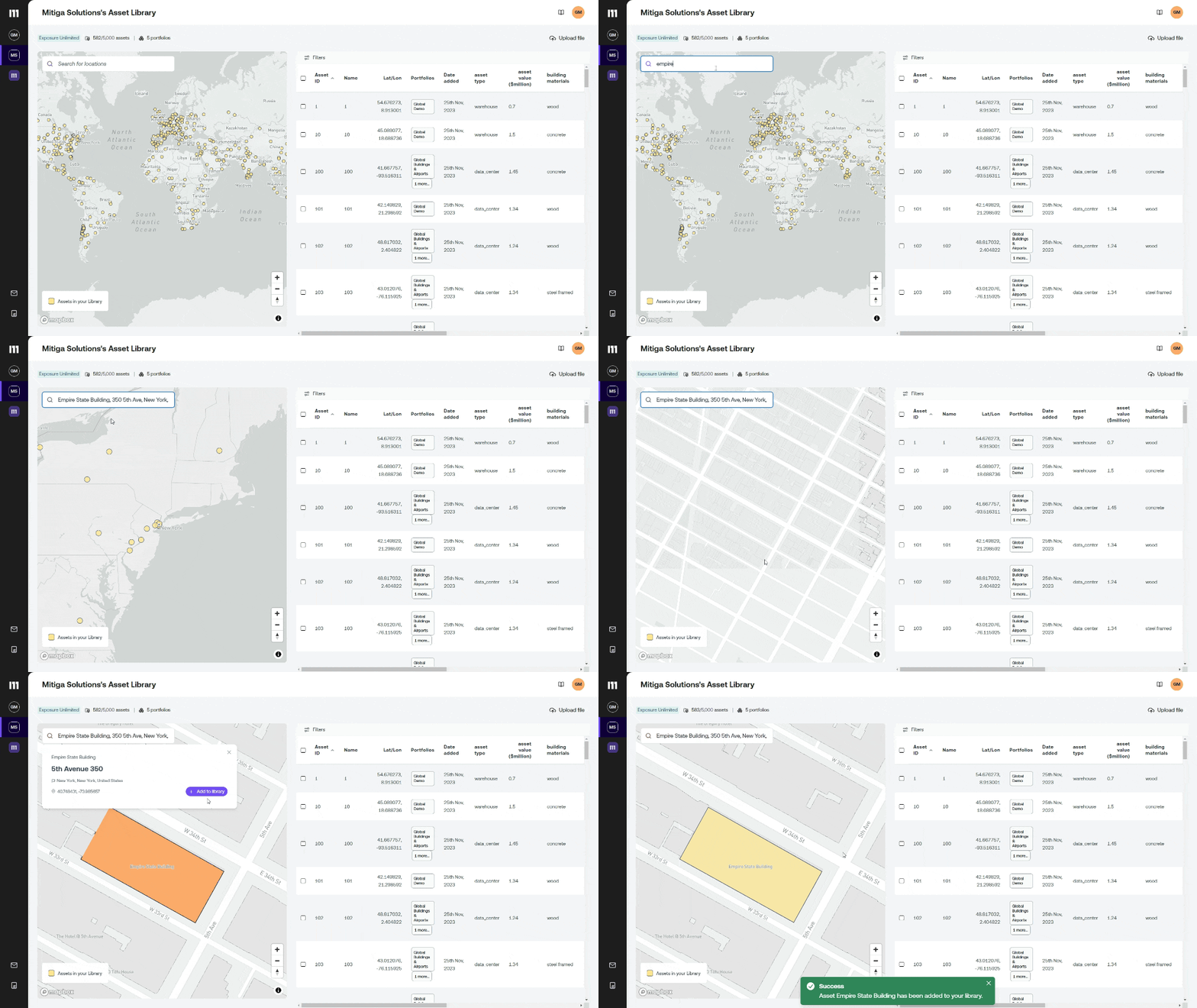
Follow these steps to manually add an asset to your Asset Library:
- Search our Asset Catalogue using the search bar and select your asset.
- Select ‘Add to library’.
- A pop-up message appears confirming that the asset has been added to your Asset Library.
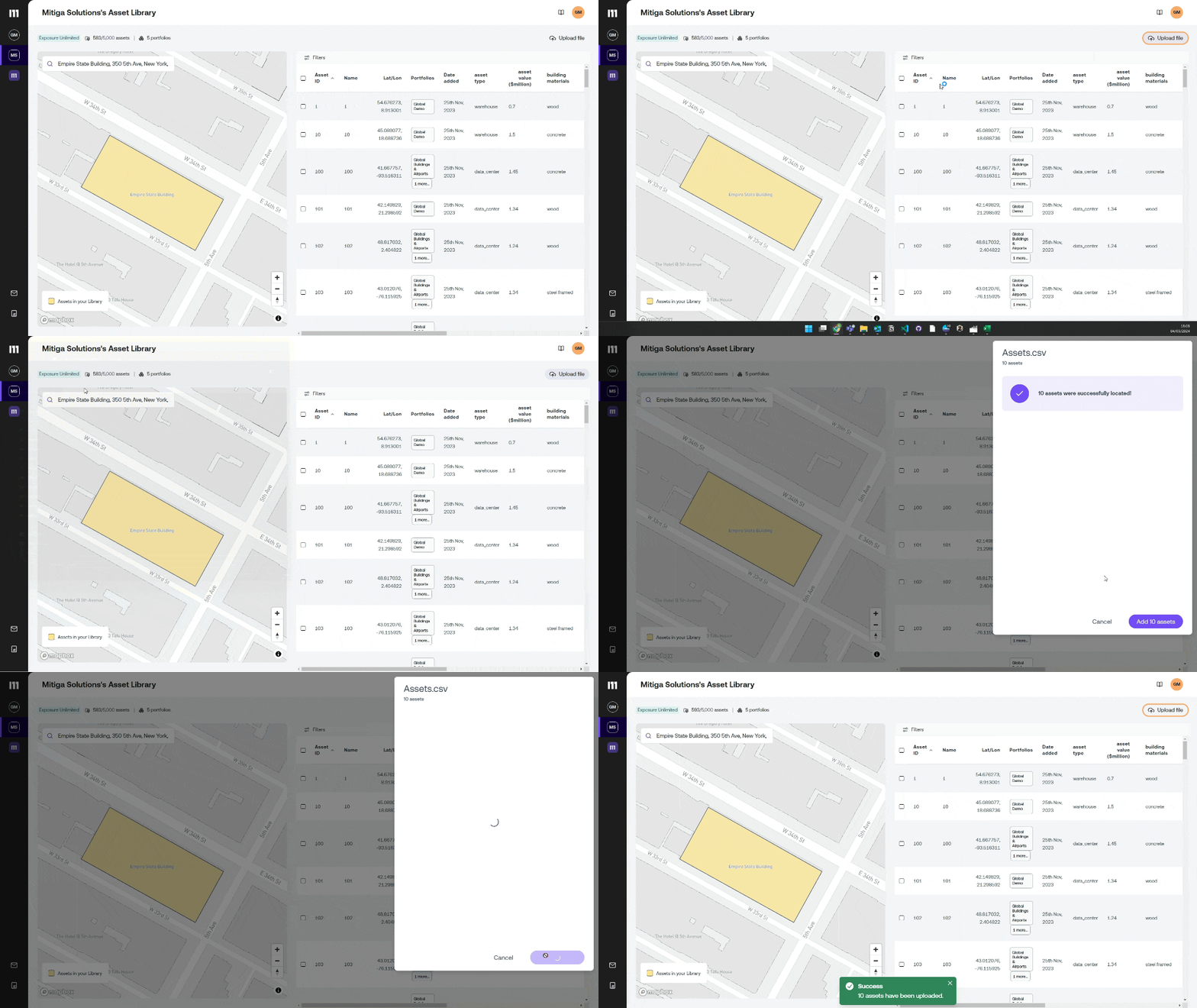
In order to add assets to your Asset Library via .csv file, follow these steps:
- Create your .csv file.
- Select ‘Upload file’.
- Click on the .csv file and select the ‘Add’ button.
- A pop-up message appears confirming the number of assets that have been uploaded to your Asset Library.
Remove assets from your Asset Library
If you no longer want an asset in your Asset Library, it’s simple to remove it:
- Select the asset(s) you want to remove: either by clicking on it on the map, or in the list view, by clicking on its check box.
- Click ‘Remove’ in the top right corner.
- A pop-up message appears confirming which assets you want to remove.
- If correct, click ‘Yes, Delete’. (Please note: You can’t directly undo this action – but you can restore any asset to your Portfolio by simply adding it again).
- A pop-up message appears confirming the number of assets removed.

Use the Asset Library to add assets to your Portfolio
You can add assets directly to multiple Portfolios from your Asset Library:
- Select the asset(s) you wish to add to a new or existing Portfolio.
- Click ‘+ Portfolio’ on the top right corner.
- Select ‘New Portfolio’ or ‘Existing Portfolio’.
-
- If you have selected ‘New Portfolio’, a new Portfolio will be created.
- If you have selected ‘Existing Portfolio’, select the Portfolio(s) you wish to add and click the ‘Add’ button.
4. A pop-up message appears to confirm your selection.
Please note: Currently, assets can only be removed from individual Portfolios from within the asset list in the specific Portfolio itself, not the Asset Library.
You can read more on how to manage the assets within your Portfolio in these Knowledge Base articles: